

There are a few different ways you can embed a YouTube video in Canvas. We are going to introduce the easiest one.
- Create a new Page or open an existing page that you would like to embed the video to. Click Pages on the Course Navigation menu.
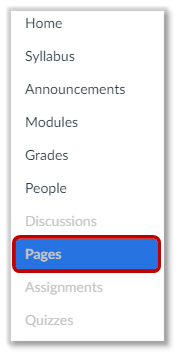
- If you have already had a Front Page selected, you will be taken to the Front Page. Click the View All Pages button.

- If you would like to embed a YouTube video to an existing page, click on the name of the page that you have created. If you would like to embed the video to a new page, click the create Page button.

- If you have already had a Front Page selected, you will be taken to the Front Page. Click the View All Pages button.
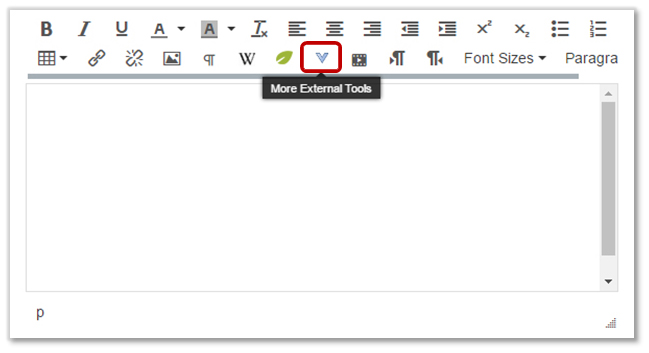
- Click More External Tools from the Rich Text Editor.
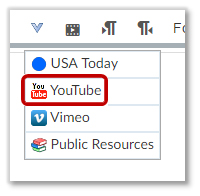
- Choose YouTube from the drop-down.
- Enter the name of the video that you would like to embed in the page and then hit Enter on your keyboard.

- Look through the search results. When you find the video, click the Embed button.

- Click the Save button, or Save & Publish button to view the video.
